USB-C Explained: Cables, Power Delivery, and Hubs
Understand USB-C: how cable types affect speed and video, what Power Delivery means for safe fast charging, and how to pick reliable hubs and docks.
Connector Basics: USB-C is a compact, reversible connector designed to carry more than one job at a time. With a single port, devices can move data, deliver power, and even send video to external displays. The key idea to remember is that USB-C describes the connector shape, not the feature set or speed. A USB-C port on one device might support fast file transfers and high-resolution video, while another might offer charging only. The plug is orientation-agnostic, so you can insert it either way, reducing wear and frustration compared with earlier connectors. This universality helps simplify cables and accessories across computers and consumer electronics, from phones and tablets to laptops, headphones, storage drives, and monitors. Many manufacturers use on-port icons to hint at capabilities, but features ultimately depend on the device, its controller, and the cable you choose. Understanding how the connector, cable, and port work together is the foundation for making smart purchases and getting the most out of modern peripherals without cluttering your desk with adapters.
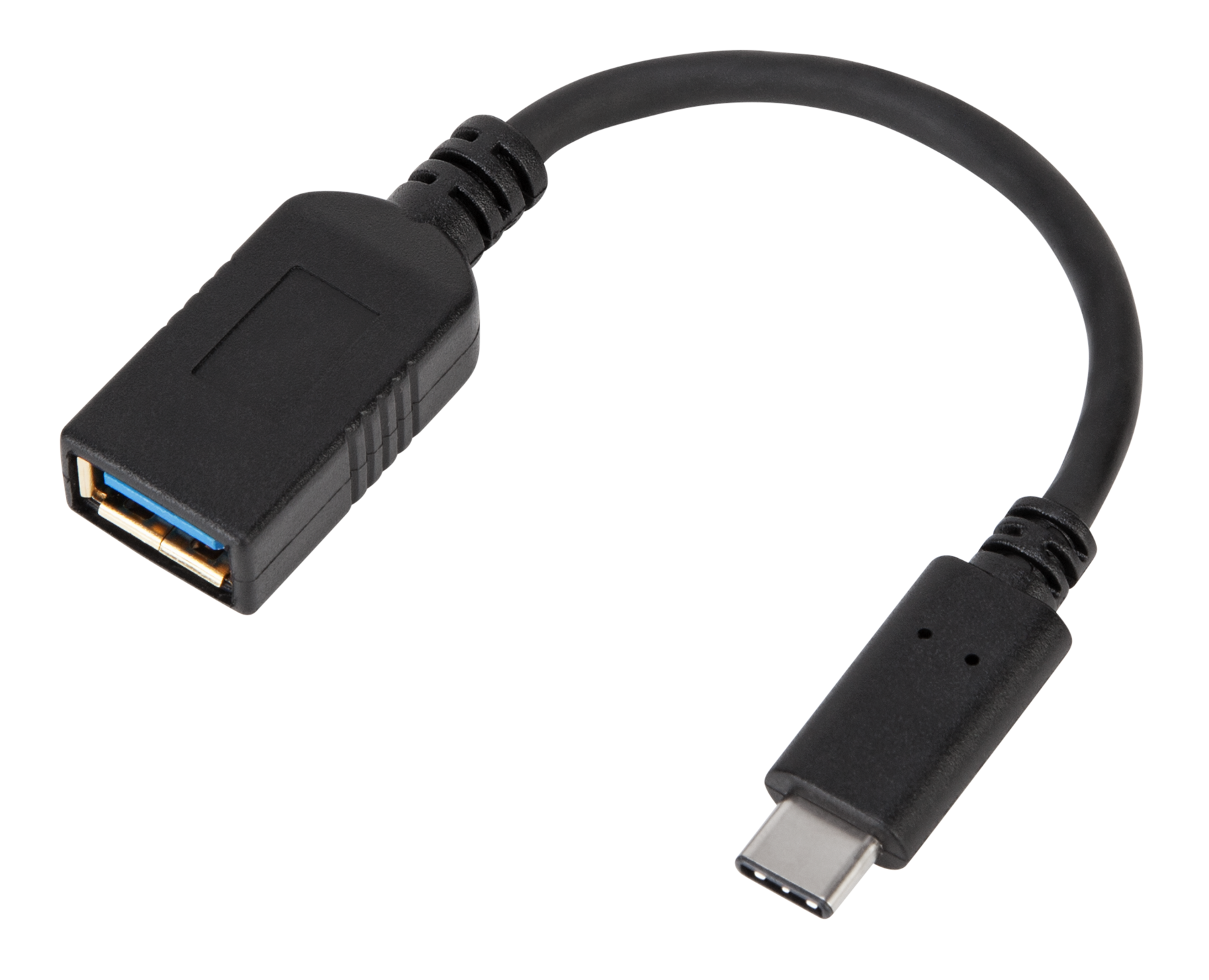
Cables and Markings: Not all USB-C cables are equal, and choosing the right one saves time and trouble. Some cables carry only USB 2.0 data rates but still support Power Delivery (PD), which can be perfect for charging yet slow for large file transfers. Others support SuperSpeed data and robust video, and the most capable include e-marker chips that advertise supported wattage and bandwidth to connected devices. Length matters: very long passive cables may reduce speed or video stability, while active cables use signal conditioning to maintain performance. High-wattage charging and top-tier data rates typically require properly rated, well-shielded conductors. Look for clear labeling, USB-IF certification, and, when applicable, markings that indicate Thunderbolt compatibility or specific speed tiers. If a device behaves unpredictably—slow transfers, flickering displays, or unreliable charging—the cable is often the culprit. Investing in a small set of clearly labeled, quality cables tailored to your needs is smarter than relying on random, unmarked cords.
Power Delivery: USB Power Delivery (PD) is a smart charging protocol that lets devices negotiate safe voltage and current. Instead of forcing a fixed profile, the source and sink agree on the best level, which can range from low-power trickle for earbuds to high-wattage charging for laptops and monitors. Many chargers and batteries are dual-role, meaning they can both provide and receive power depending on the situation. Advanced PD modes, such as PPS (Programmable Power Supply), can fine-tune voltage for more efficient and cooler charging of compatible devices. The headline wattage on a charger is the maximum it can provide, not what every device will draw, so it's safe to use a higher-rated adapter; the device takes only what it needs. Cable quality affects PD, too—thicker conductors and e-marked cables help deliver stable current. For best results, pair the charger's wattage with your device's requirements, keep an eye on temperature, and avoid mixing unverified adapters with high-demand electronics.
Video and Bandwidth: A single USB-C port can carry video through Alternate Modes, most commonly DisplayPort Alt Mode and, on some hardware, HDMI Alt Mode. When you run video over USB-C, you share bandwidth with data, so the maximum resolution, refresh rate, or number of displays may drop if the same connection also carries network, storage, or camera streams through a hub. Capable systems can drive external monitors at high resolutions, but results depend on the device's controller, the cable, and the adapter or dock. Thunderbolt-enabled ports and cables raise the ceiling for bandwidth, allowing multiple high-resolution displays and fast storage simultaneously, though both ends must support it. Keep in mind that some adapters convert signals and may compress or limit performance to fit within available bandwidth. If you encounter flicker, artifacts, or limited modes, try a shorter, rated cable, a dedicated video adapter, or reduce competing data usage on that same link to free up headroom.
Hubs and Docks: USB-C hubs, multiport adapters, and docking stations expand a single port into many. A simple hub focuses on data ports—think extra USB-A for peripherals—and often shares the link's bandwidth across all connected devices. Multiport adapters combine video, USB, Ethernet, and card readers in a compact block, sometimes with power delivery passthrough so your laptop can charge while connected. Full docks go further with more ports, stable wired networking, multiple display outputs, audio jacks, and higher power budgets, often via an external power supply. The port on your computer must support the features you want; a dock cannot add capabilities the host lacks. Consider whether you need bus-powered portability or self-powered reliability for desktops. Also note that every device on a hub shares the same pipeline, so heavy storage transfers can impact display or network performance. For consistent results, match the dock's chipset and ratings to your workload and keep firmware updated when available.
Buying and Using Tips: Start by listing your needs: charging wattage, number of displays, storage speed, and accessory count. Choose USB-IF certified chargers and cables, and keep a few lengths on hand—short for the desk, longer for travel—while avoiding excessively long runs when speed or video quality matters. Label your best cables with their capabilities, such as PD high-wattage, SuperSpeed data, or video-ready, to prevent guesswork. When using PD passthrough on a hub or dock, ensure the adapter can supply enough power for the host and attached peripherals. If something misbehaves, swap the cable first, try a different port, or reduce the number of devices sharing bandwidth. For displays, use dedicated video adapters where possible and verify that the port supports Alt Mode. Regularly check for device or dock firmware updates to fix quirks. With a small, reliable kit of cables and a well-chosen hub or dock, you can streamline your workspace and make USB-C work predictably across all your gear.