Understanding SSD vs HDD Storage for Everyday Use
Understand SSD vs HDD differences in speed, durability, noise, power use, and price so you can choose the right drive for everyday computing tasks.
Overview: SSD vs HDD
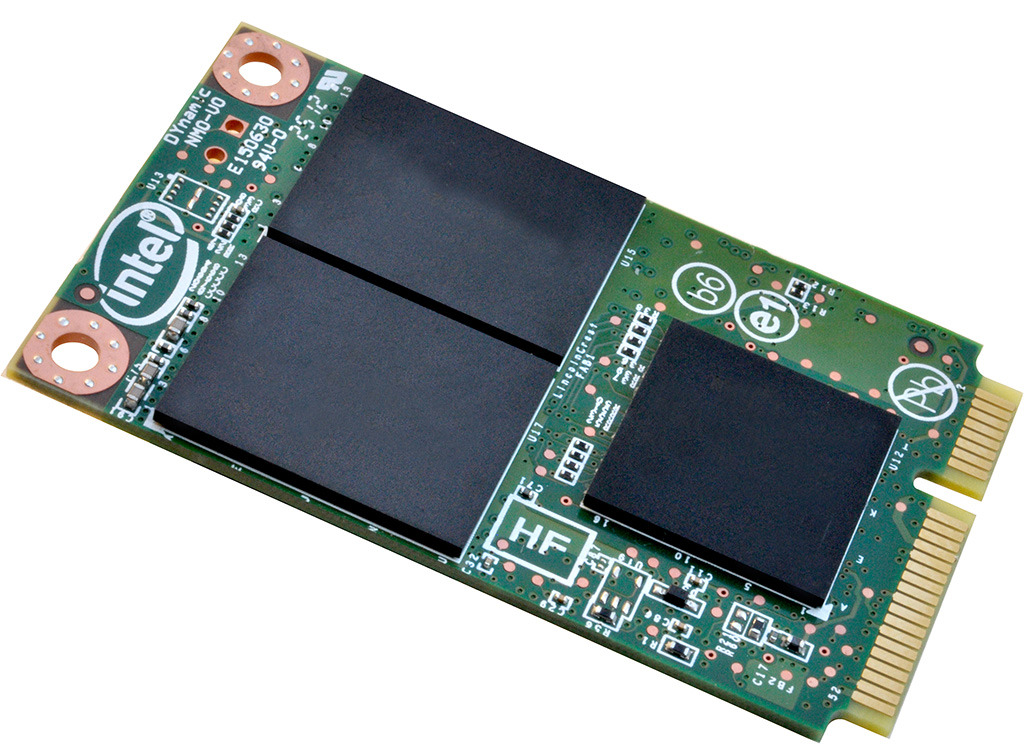
When comparing SSD and HDD storage for everyday use, it helps to start with how each works. An HDD (hard disk drive) stores data on spinning platters read by moving read/write heads. An SSD (solid-state drive) uses flash memory with no moving parts, so data is accessed electronically. This core difference shapes nearly every aspect of the user experience, from speed and durability to noise and power draw. In the world of computers and consumer electronics, both options still matter: HDDs often shine for bulk storage at a low cost, while SSDs deliver quick responsiveness for daily tasks. If you spend time browsing, opening apps, managing photos, or working with documents, an SSD often feels dramatically faster. If you need to store large archives—videos, games, backups—an HDD can offer roomy capacity without breaking the bank. Understanding these strengths lets you mix and match intelligently, building a setup that serves your actual habits rather than chasing buzzwords.
Speed and Responsiveness
For day-to-day computing, speed is the difference you feel immediately. SSDs excel at low latency and random access, which means they open apps, load projects, and search files quickly, even when multitasking. Because there are no mechanical parts to move, SSDs skip the delays associated with seek time on HDDs, where the read/write heads must physically find data. HDDs can still deliver solid sequential throughput, so large, continuous file transfers may be competitive, but the real-world benefit of SSDs shows up in the little moments: launching a browser, switching between tabs, scrolling through photo libraries, or resuming a system after sleep. Faster response times add up, reducing waiting and boosting productivity. Gamers notice quicker level loads, and creative users benefit from snappier previews. If your priority is a machine that feels instant and smooth, an SSD is usually the best upgrade, often transforming an older device without changing any other component.
Durability and Reliability
In terms of durability, SSDs hold a clear advantage because they have no moving parts. This makes them more resistant to shocks, bumps, and vibrations, which is valuable in laptops, handheld devices, and portable drives that travel often. HDDs can be reliable when handled gently, but a sudden jolt during operation risks head crashes or data corruption. On the flip side, SSDs are subject to write endurance limits because flash cells wear out after many program and erase cycles; however, modern wear leveling and overprovisioning help extend lifespan under typical consumer workloads. Both drive types benefit from features like SMART monitoring, and both can fail unexpectedly, so consistent backups remain essential. Consider environment and usage: a desktop that rarely moves may be fine with an HDD for bulk storage, while a student laptop or external drive tossed in a bag will likely fare better with an SSD. The right choice hinges on how and where the drive will be used.
Capacity, Cost, and Value
When weighing capacity and cost, HDDs still lead on price per gigabyte, making them attractive for massive media libraries, video archives, or comprehensive backups. SSDs offer less capacity at higher cost, but the value case is strong if everyday responsiveness matters. Many users adopt a hybrid strategy: a smaller SSD as the primary drive for the operating system and apps, paired with a larger HDD (internal or external) for bulky files. This mix balances speed and space without overspending. If your work involves large datasets, multiple game installations, or raw footage, prioritize roomy storage; if you mostly browse, create documents, and manage photos, a modest SSD may be enough. Factor in hidden savings too: faster performance can shorten task time, and some users find they need fewer drives overall. The smartest pick is the one aligned with your workload, not the biggest number on a spec sheet.
Noise, Heat, and Power
Everyday comfort includes noise, heat, and power usage. SSDs run silently and typically use less power, which can extend laptop battery life and keep systems cooler under light to moderate loads. HDDs contain spinning platters and motors, producing vibration and audible hum that some users notice in quiet rooms or compact enclosures. In desktops, an HDD's thermal output may be modest, but multiple drives can add up, influencing airflow and fan speeds. For living room PCs, classroom carts, or shared spaces, the silence of SSDs can be a quality-of-life upgrade. In external enclosures, SSDs also avoid the whirring and occasional clicks that HDDs can emit during activity. Power-sensitive scenarios—ultraportables, travel workstations, battery-powered setups—generally favor SSDs. If you are building a storage-heavy desktop or NAS-style archive, HDDs remain practical, but consider drive placement, vibration dampening, and adequate cooling to maintain stability and reduce wear.
Maintenance and Lifespan
Smooth long-term use involves good maintenance habits. SSDs benefit from TRIM support and updated firmware to preserve performance as data changes over time. They do not need defragmentation, and in fact, excessive defragmentation can wear flash unnecessarily. HDDs can gain from periodic optimization and ensuring they have space to operate efficiently. Both drive types should be monitored with SMART tools for warning signs like reallocated sectors or unusual error counts. Remember that all storage can fail; backups are non-negotiable, ideally following a multi-copy strategy across different devices or locations. If an SSD nears its endurance limit, it often remains readable even as writes slow, giving time to migrate. HDDs may present early signs like clicking, slow reads, or frequent retries. Data recovery from failed HDDs can be possible but costly, while SSD recovery depends heavily on controller and firmware. Preventive care beats emergency fixes every time.
Practical Buying Tips
When choosing, start with compatibility and interface. Most consumer systems support SATA drives, while modern laptops and desktops may offer NVMe over PCIe for much higher performance. Form factors include 2.5-inch for SATA and M.2 for NVMe; confirm your device supports the size and keying. Decide on capacity by assessing real workloads: operating system, core apps, games, project files, and room to grow. A fast SSD as the main drive paired with an HDD or an additional SSD for bulk storage is a versatile approach. Look for clear warranty terms, reliable support, and proven firmware stability. Plan your migration with a cloning tool or clean install, and keep a backup before any swap. Casual users often thrive with a mid-size SSD; creators and gamers may prefer larger NVMe options; archival users might lean on roomy HDDs. Focus on balanced performance, capacity, and reliability rather than chasing a single headline spec.