Storage 101: SSD vs HDD and Why It Matters
Learn the key differences between SSDs and HDDs—speed, durability, capacity, cost—and how choosing the right drive impacts performance and lifespan.
Storage Building Blocks — In consumer electronics, two storage types dominate: the solid-state drive (SSD) and the hard disk drive (HDD). An HDD stores data on spinning platters, with a moving actuator arm reading and writing bits magnetically. An SSD uses NAND flash and has no moving parts, relying on a controller and firmware to manage data, wear, and error correction. This difference shapes everything from latency to reliability. HDDs are mechanically limited by seek time, so they shine with sequential transfers like large media files. SSDs deliver far lower access latency, enabling fast random I O for launching apps, multitasking, and indexing. Interfaces such as SATA and PCIe carry data, but the storage medium determines how quickly the drive can respond. File systems, caches, and operating system settings further influence behavior. Understanding these building blocks helps you choose wisely, whether you prioritize responsiveness, capacity, or a blend of both for everyday computing, creative projects, or archiving.
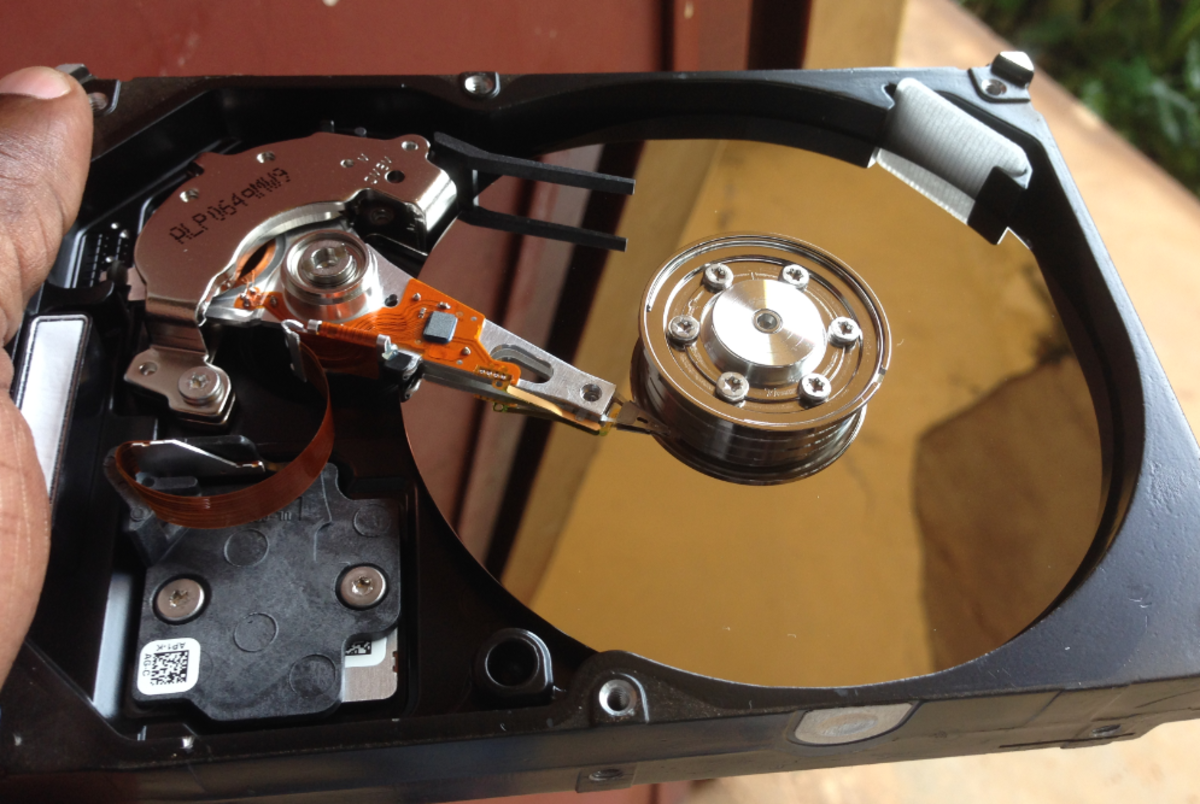
Speed and Everyday Performance — If you care about snappy computing, latency and IOPS matter as much as raw bandwidth. An SSD typically boots systems faster, opens programs in a blink, and keeps multitasking smooth because it handles random reads and writes with minimal delay. Even an SSD on SATA can feel transformative compared with an HDD, while NVMe SSDs over PCIe add higher throughput for heavy workloads like large photo catalogs, code builds, and 4K video proxies. By contrast, HDDs can keep up in long, sustained transfers, but their seek time hurts responsiveness when tasks jump between many small files. Features like controller caching, queue depth optimization, and TRIM support help SSDs maintain speed as they fill. Fragmentation impacts HDDs more, since file pieces force extra head movements, while SSDs are largely immune to that pattern. In practical terms, an SSD feels faster for daily tasks, and that perception of speed often improves overall productivity and satisfaction.
Durability, Acoustics, and Power — The absence of moving parts gives SSDs natural advantages in shock tolerance, vibration resistance, and silence. Laptops benefit from SSDs because they withstand bumps in transit and contribute to longer battery life by drawing less power during idle and light workloads. HDDs, with spinning platters and motors, can introduce noise and are more sensitive to movement, though they perform reliably when kept stable and cool. On the flip side, SSDs have finite write endurance measured in TBW and managed by wear leveling and overprovisioning. Modern controllers handle this gracefully, and typical consumer usage rarely exhausts endurance before a device is replaced. Thermal behavior matters for both technologies: SSDs can throttle under sustained, heavy writes, while HDDs prefer consistent airflow to avoid heat buildup. Regardless of drive type, consistent backups, SMART monitoring, and thoughtful placement in your case or chassis help preserve performance and prevent unexpected data loss.
Capacity, Cost, and Value Strategy — Cost per gigabyte still favors the HDD for large libraries, making it attractive for archival and bulk storage of photos, videos, and long-term backups. SSDs deliver outstanding responsiveness but generally cost more per unit of capacity. A common value approach is a hybrid strategy: use a fast SSD as a system and applications drive, then add a high-capacity HDD for media and project archives. Form factors like 2.5 inch, M.2, and interfaces like SATA or PCIe determine compatibility and performance, so check your device or motherboard slots before buying. If you need silence and instant access for creative work, prioritize an SSD with ample headroom; if you need an affordable vault for large collections, an HDD shines. External enclosures and docks can extend flexibility for backups and offloading. Think about your data growth, performance expectations, and budget to assemble a balanced storage plan that feels fast and stays practical.
Choosing and Migrating with Confidence — Match the drive to your use case. For web browsing, office tasks, and light gaming, a modest SSD provides dramatic quality-of-life improvements. For content creation, consider a higher-capacity NVMe SSD for scratch files and active projects, plus an HDD for raw footage and archives. Gamers can store frequently played titles on SSD while moving slower, seldom-used titles to HDD. Check form factor, interface, controller quality, DRAM cache presence, and warranty when comparing models. During migration, back up first, then either clone your existing system to the SSD or perform a clean install for a fresh start. Enable TRIM, keep firmware up to date, and avoid routine defragmentation on SSDs. For HDDs, periodic checks and consistent airflow help longevity. Monitor SMART attributes, keep at least some free space for healthy operation, and practice a reliable backup routine so your storage choice stays secure, fast, and future-friendly.