Monitors Demystified: Resolution, Refresh Rate, and Color Accuracy
Learn how resolution, refresh rate, and color accuracy shape clarity, smoothness, and fidelity—so you can pick the right monitor for work, gaming, or creation
Resolution Unpacked
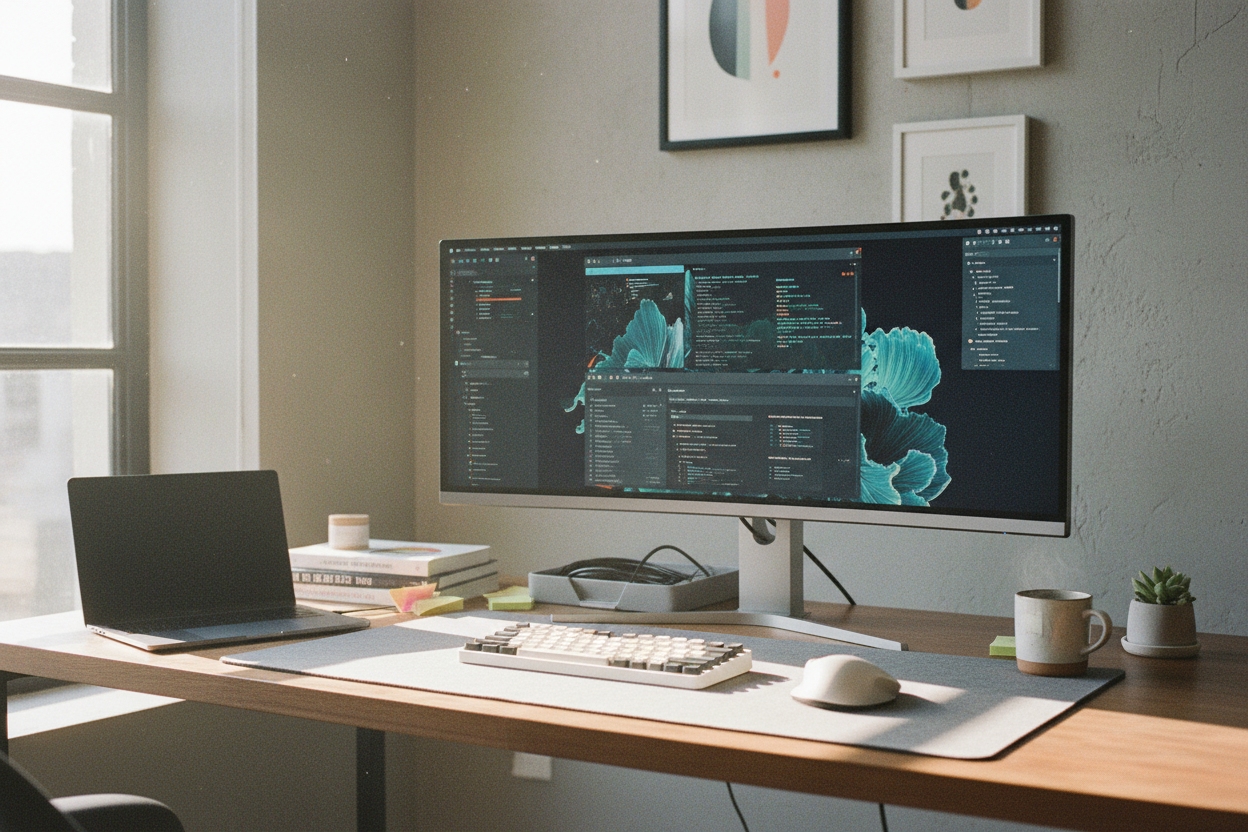
Understanding monitor clarity starts with resolution, the grid of pixels that forms every image. Higher pixel counts can reveal fine detail, but clarity also depends on pixel density (PPI) and screen size. A large screen with modest resolution may look soft up close, while a smaller panel with high density produces crisp text and precise edges. Your viewing distance and scaling preferences matter too: tighter pixels allow smaller UI elements without eye strain, but aggressive scaling can negate workspace gains. Consider aspect ratio as well. Standard 16:9 fits most content, ultrawide formats expand timelines, spreadsheets, and side-by-side windows, and super‑ultrawide panels can replace multi‑monitor setups. Remember that higher resolutions demand more from your GPU, affecting frame rates in games and heavy creative workloads. Balance detail, performance, and desk ergonomics to find a sweet spot that supports reading, editing, design, or play, and think about future flexibility if you plan to pair the monitor with different devices or workflows.
Refresh Rate and Smoothness
A monitor's refresh rate tells you how many times per second it updates the image. Higher rates improve motion clarity for scrolling, cursor movement, and fast gameplay, reducing perceived blur and improving input confidence. Even outside gaming, a jump from basic refresh rates to faster panels makes interfaces feel snappier and more responsive. To avoid tearing and stutter, look for variable refresh rate (VRR) features such as adaptive sync, which align the display's refresh to the content's frame output. This coordination smooths motion when frame delivery is uneven, helping both action titles and demanding creative previews. Some panels offer low latency processing modes that further tighten control feel. Balance is important: ultra‑high refresh rates require more GPU horsepower and may trade off peak resolution or color depth depending on connection bandwidth. Consider how you actually use your monitor—competitive games, cinematic media, or productivity—and choose a refresh rate that fits your daily tasks without overspending on unused headroom.
Response Time and Motion Artifacts
Beyond refresh rate, response time describes how quickly pixels transition between shades. Slow transitions cause ghosting, where faint trails follow moving objects. Manufacturers often quote gray‑to‑gray figures, but real performance varies with color changes and panel type. Many monitors include overdrive settings that push pixels faster; too little leaves blur, too much introduces overshoot or inverse ghosting halos. Look for balanced tuning or multiple modes to match your content. Another factor is motion blur from sample‑and‑hold behavior, where your eyes track moving objects while pixels remain lit. Some displays combat this with strobing or backlight blur reduction, inserting dark periods between frames for sharper perceived motion. Strobing can reduce brightness and may introduce flicker, so it is best reserved for specific use cases. Evaluate MPRT alongside GtG numbers when available, test different overdrive levels, and remember that refresh rate, response time, and drive settings all interact. The goal is clear motion without artifacts that distract from work or play.
Color Accuracy and Gamut
For creators and discerning viewers, color accuracy is pivotal. Start with gamut coverage: sRGB is the baseline for the web, while wider spaces like DCI‑P3 or Adobe RGB support richer hues for cinema, photography, and print workflows. Accuracy is typically expressed as Delta E, where lower values indicate closer alignment to target colors. Bit depth matters too; 10‑bit panels can display smoother gradients than 8‑bit, and some use 8‑bit+FRC to approximate more steps. Ensure the monitor's gamma, white point, and uniformity support consistent results across the screen. Professional work benefits from calibration with a colorimeter and the use of ICC profiles, while factory presets can provide a solid starting point for general use. Ambient light affects perception, so control glare and consider a neutral viewing environment. For HDR workflows, monitor peak brightness, local dimming behavior, and tone‑mapping quality, but remember that dependable, repeatable SDR performance is the foundation for trustworthy color.
Panel Technologies and Use Cases
Different panels bring distinct strengths. IPS offers excellent color consistency and wide viewing angles, great for design and collaboration, while VA panels deliver higher native contrast for deeper blacks and immersive movies, with slightly narrower angles. TN technology emphasizes speed and low latency but typically sacrifices color and off‑axis performance. OLED provides near‑instantaneous response and pixel‑level contrast for stunning HDR, though it benefits from burn‑in mitigation and sensible brightness management. Many LCDs use mini‑LED backlights with local dimming to enhance contrast; more zones generally mean less blooming around highlights. Consider subpixel layout implications for text clarity, especially if you rely on fine typography. Evaluate HDR capabilities holistically, including sustained brightness, color volume, and dimming behavior, not just marketing labels. Match the technology to your priority—color‑critical work, competitive gaming, cinematic viewing, or all‑round productivity—and test in person when possible to confirm uniformity, coating quality, and comfort under your lighting.
Buying, Setup, and Care Essentials
When choosing a monitor, align resolution, refresh rate, and panel type with your tasks, desk depth, and seating distance. Ensure the stand supports ergonomic adjustments, or plan for a VESA mount to achieve proper posture. Verify cable bandwidth so your HDMI or DisplayPort connection can drive the desired resolution and refresh rate with the color depth you intend. If you rely on a single‑cable setup, look for USB‑C with display support and power delivery. After setup, fine‑tune scaling for readable text, set brightness to match room light, and choose a warm color temperature for long sessions. Calibrate or at least use accurate presets, and store separate profiles for day and night. For OLEDs, enable pixel refresh routines and vary content to reduce wear. Keep surfaces clean with a microfiber cloth and avoid harsh cleaners. Finally, consider KVM or multi‑input features if you switch devices often, and save custom modes for gaming, media, and work to streamline your day.