Monitors Demystified: Resolution, Refresh Rate, and Color Accuracy
Demystify resolution, refresh rate, and color accuracy so you can pick the right monitor for gaming, creative work, and everyday tasks—practical guidance.
Resolution, Pixels, and PPI
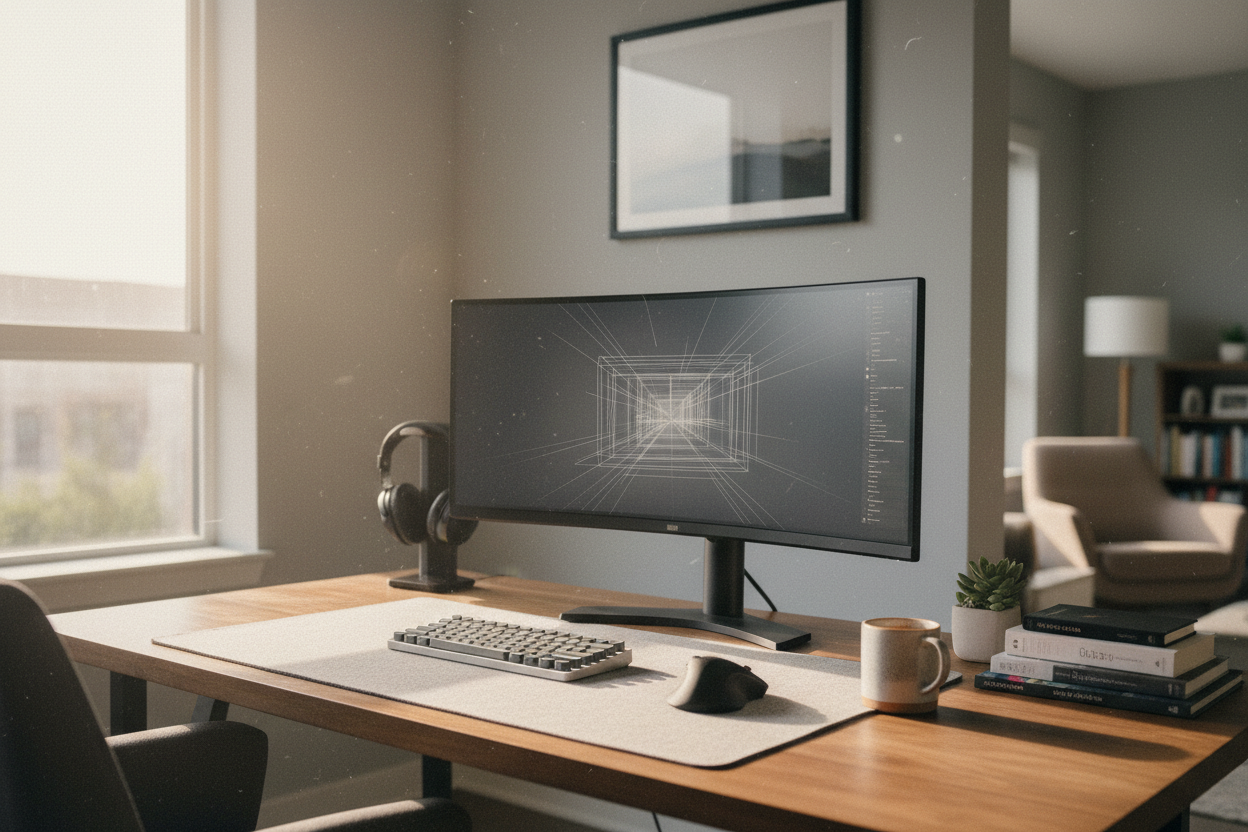
Choosing a monitor starts with understanding resolution and pixel density. Resolution describes how many pixels span the screen, commonly expressed as 1920 x 1080, 2560 x 1440, or 3840 x 2160. More pixels can reveal finer detail, but the benefit depends on screen size and viewing distance. That is where PPI or pixels per inch helps, quantifying sharpness across sizes. A compact high resolution display can look incredibly crisp, while a large, lower resolution model may show visible pixel structure. Consider scaling too, which enlarges interface elements to keep text legible; good scaling preserves clarity without blurriness. Aspect ratio matters as well: standard widescreen suits general use, ultrawide adds horizontal workspace, and taller ratios can aid reading and coding. Balance GPU capability and the apps you run, since higher resolutions demand more rendering power. The sweet spot combines comfortable text size, adequate workspace, and performance that stays smooth for your tasks.
Refresh Rate and Perceived Smoothness
A monitor's refresh rate, measured in Hz, tells you how many times the screen updates per second. Higher refresh rates deliver smoother motion, reduce sample and hold blur, and can enhance responsiveness in fast action. Even outside gaming, a higher refresh rate can make scrolling, pen input, and UI animations feel more fluid. Pair refresh rate with frame rate from your device; when frames align with refresh cycles, motion looks clean and consistent. Variable refresh rate or VRR helps the panel adapt to changing frame rates, minimizing tearing and stutter. For competitive play, high refresh paired with low input lag can provide a tangible edge. Creative and office users may still prefer higher refresh for comfort, but can prioritize other traits too. Remember that higher refresh increases bandwidth and power needs, so ensure your cables and ports support the required throughput. The best choice balances smoothness, clarity, and the demands of your workflow.
Response Time, Overdrive, and Motion Clarity
Beyond refresh rate, response time determines how quickly pixels transition between colors. Slower transitions create ghosting, smearing, or inverse halos that can distract during motion. Specifications often list GtG or gray to gray values, but real world performance varies across brightness levels and colors. MPRT reflects perceived blur tied to how long each frame persists on screen, influenced by strobing and refresh behavior. Many monitors include overdrive controls to accelerate transitions; moderate settings can reduce blur, while excessive overdrive causes overshoot and artifacts. Some displays offer backlight strobing to lower MPRT and sharpen motion, though this can reduce brightness and may introduce flicker. Strobing usually does not coexist with VRR, so you pick the mode that suits your content. Evaluate how your most common tasks look in practice, from rapid camera pans to scrolling code. A well tuned display balances transition speed, artifact control, and comfortable brightness without eye strain.
Color Spaces, Gamut, and Accuracy
For creators and anyone who values faithful visuals, color accuracy is crucial. A monitor's gamut indicates the range of colors it can produce relative to color spaces like sRGB, DCI P3, or Adobe RGB. Wide gamut panels can oversaturate standard content unless you use proper color management or a dedicated sRGB mode. True accuracy is measured by Delta E, where lower numbers signal closer matches to reference values. Aim for consistent gamma, neutral grayscale, and stable white point so images appear natural across devices. Hardware or software calibration with an instrument and ICC profiles aligns the display with your workflow, whether web, video, or print. Consider 10 bit processing and uniformity features if you grade or retouch professionally. Even for general viewing, a well tuned monitor reduces eye fatigue and ensures that what you see mirrors creator intent. Remember, accuracy relies on both capable hardware and correct setup.
Panel Technologies and Their Tradeoffs
Different panel types shape the viewing experience. IPS panels typically deliver excellent viewing angles and color consistency, making them popular for design and general productivity. VA offers higher contrast, deepening blacks for movies and games, though some models exhibit slower dark transitions that can smear motion. TN prioritizes speed with very fast response times and low input lag, but sacrifices color and angles. OLED can achieve near instantaneous transitions and true blacks per pixel, with remarkable contrast and uniformity, though it benefits from cautious static content management. Mini LED backlights paired with local dimming can boost contrast on LCDs, improving HDR scenes. Pay attention to uniformity, as edge lighting and panel variance can produce visible brightness or tint differences. Subpixel layout also affects text clarity, particularly at non native scaling. The right choice depends on your priorities across speed, contrast, color fidelity, and workspace comfort.
Brightness, Contrast, and HDR Realities
A compelling picture relies on brightness and contrast ratio as much as color. Sufficient brightness ensures readability in well lit rooms, while deep contrast preserves detail in shadows without crushing blacks or blowing highlights. HDR promises expanded dynamic range and punchier specular highlights, but real world results depend on panel capability, local dimming granularity, and tone mapping. Edge lit implementations may brighten large areas without precise control, while multi zone designs can better separate bright and dark regions. OLED achieves pixel level contrast, revealing nuanced depth in complex scenes. Calibration remains vital, since incorrect gamma or elevated black levels can wash out images. Factor in ambient light; bias lighting behind the screen can lift perceived contrast and ease eye strain. Ultimately, a balanced setup that respects both peak brightness and shadow fidelity will look more natural and comfortable over long sessions.
Connectivity, Ergonomics, and Smart Setup
The best monitor feels effortless day to day. Ensure ports like HDMI, DisplayPort, or USB C match your devices and support your target resolution and refresh rate. Some USB C inputs also offer power delivery and peripheral connectivity, simplifying a single cable desk. Check cable quality and length to maintain signal integrity at high bandwidths. Ergonomics matter: a stand with height, tilt, swivel, and pivot adjustments helps align the display to eye level, reduces strain, and makes portrait work easier. VESA mounting allows flexible arms or multi display arrays. For accuracy, use built in sRGB or creator modes as a baseline, then refine with calibration. Keep scaling consistent for readable text, enable night or blue light modes for late sessions, and save presets for work versus play. With VRR and low input lag configured, you get smooth motion, while thoughtful setup ensures comfort and dependable color day after day.