Keyboard and Mouse Ergonomics: Set Up for Comfort and Productivity
Set up your keyboard and mouse for neutral posture, fewer aches, and faster work. Practical placement, gear tips, and a quick checklist inside.
Neutral Posture First
Comfort and productivity begin with neutral posture that lets your hands operate a keyboard and mouse without strain. Sit with your feet flat, hips slightly above knees, and your spine supported so your head stacks over your shoulders instead of reaching forward. Keep your elbows near your sides with a gentle open angle, and let your forearms stay roughly parallel to the floor. Aim for straight wrists—not bent up, down, or sideways—so tendons glide smoothly. Lightly rest your forearms on the desk or adjustable armrests between bursts of typing, but avoid pressing the soft underside of your wrists while you type. Place your display so you can look straight ahead with relaxed neck muscles, which indirectly protects your shoulder and arm mechanics. When your baseline posture is right, your keyboard and mouse can be positioned to support it rather than fighting it. This foundation minimizes muscle tension, encourages efficient movement, and helps prevent cumulative strain that erodes focus and comfort.
Keyboard Placement and Tilt
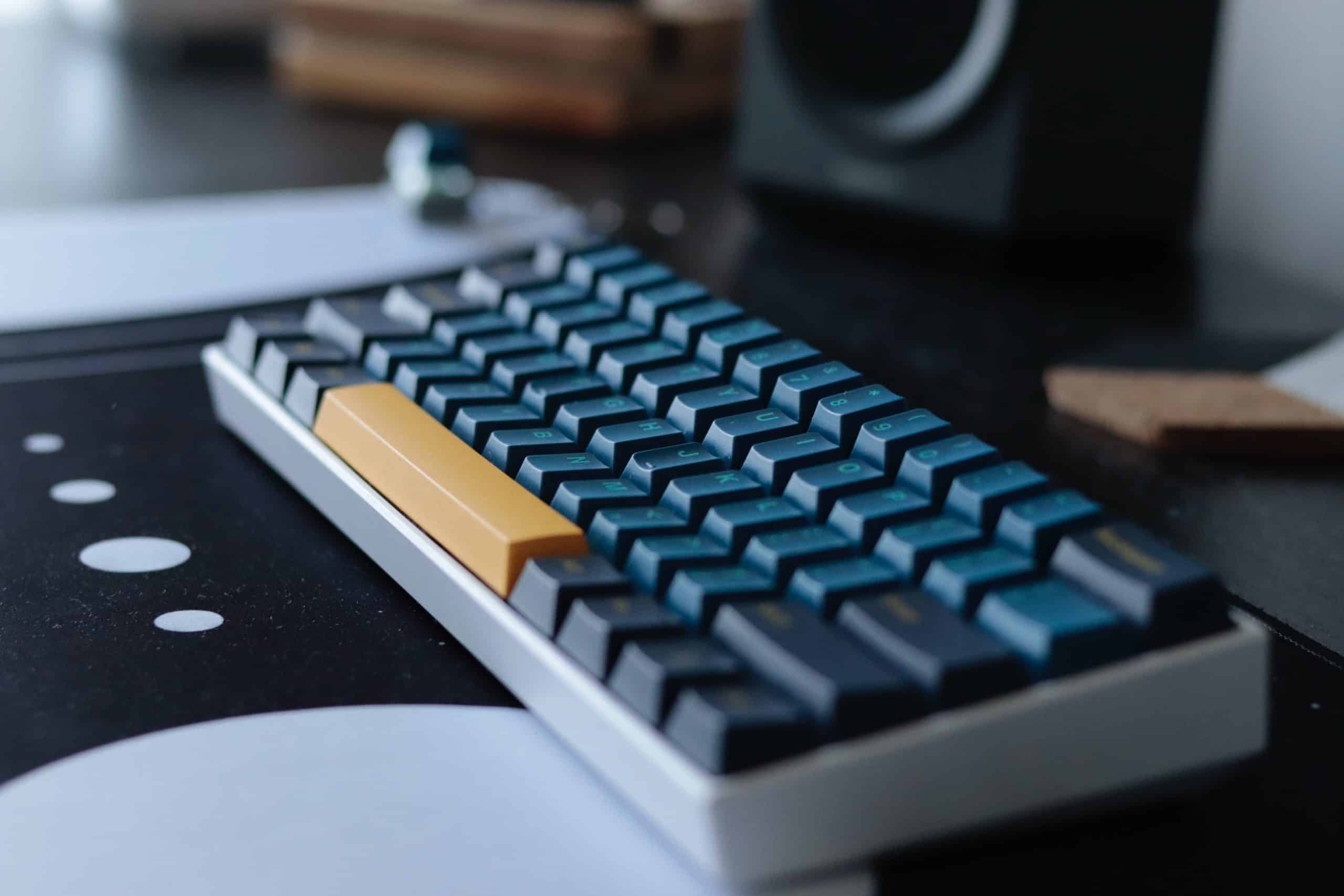
Arrange the keyboard so the home row is centered with your body, not the number pad. Position it close enough that your elbows stay under your shoulders and your upper arms remain relaxed. Aim for the key surface to sit at about elbow height, which keeps wrists neutral. A slight negative tilt—front edge higher than the back—reduces wrist extension; test small changes until your hands feel level and light. If you use a compact or tenkeyless layout, you may shrink the reach to the mouse, decreasing shoulder strain. Split or tented boards can help maintain natural forearm angles, but they must still be aligned to your midline. Choose key switches and keycaps that match your preference for key travel and actuation force so you aren't bottoming out or pounding. Keep a clear path to commonly used keys, and avoid stacking accessories in front of the board that push your hands too far away.
Mouse Fit, Grip, and Sensitivity
Your mouse should match your hand size and grip style—palm, claw, or fingertip—so your fingers rest naturally without stretching. Place it on the same level as the keyboard and as close as practical to minimize reaching; this supports a relaxed shoulder and steady elbow. Adjust pointer speed so you can traverse the screen with small, controlled motions, reducing forearm travel and repetitive flicks. Experiment with pointer acceleration; some people prefer a linear response for precision, while others benefit from modest acceleration to reduce movement. Tune scroll speed to avoid excessive wheel spins, and consider assigning side buttons to common actions like navigation or window management to cut redundant clicks. Keep your wrist neutral and initiate movement from the elbow and shoulder rather than hinging at the wrist alone. A surface with consistent glide—not too slick, not too grippy—improves control and lowers the effort of fine pointing tasks.
Microbreaks, Movement, and Eye Care
Even an excellent setup needs microbreaks to restore circulation and reset posture. Every few minutes, pause for a brief recovery: drop your shoulders, open and close your hands, and gently rotate wrists to relieve tension. Stand intermittently, shift your weight, or take a short walk to give static tissues a rest. Integrate small stretches—pectorals, forearms, and upper back—to balance the muscles you use while typing and mousing. Keep your eyes comfortable with the 20-20-20 rule: look at something far away for a short interval to relax focusing muscles. Hydration and steady breathing also support sustained concentration. If you notice creeping shoulder elevation, a heavy grip on the mouse, or a tendency to hunch toward the screen, treat these as cues to reset. Frequent, brief movement prevents stiffness from building into pain, and it often boosts mental clarity, helping you return to tasks with improved accuracy and speed.
Shortcuts, Remapping, and Motion Economy
Reducing unnecessary motions protects your hands and speeds up work. Lean on keyboard shortcuts for navigation, editing, window management, and launching tools so you rely less on repetitive mouse travel. Use remapping to place frequent commands under comfortable key combinations and consider text expansion for phrases, signatures, and templates you type often. If your mouse has extra buttons, map them to actions you repeat all day, such as forward and back navigation or task switching. Keep your dominant hand free by offloading navigation keys to the other hand when practical, balancing the workload across both sides of your body. Consolidate workflows to minimize context switching, and keep essential items—phone, notepad, stylus—within a short reach arc. These small improvements in motion economy reduce cumulative strain, cut errors caused by fatigue, and create a smoother rhythm that supports both comfort and productivity throughout long sessions.
Accessories, Surfaces, and Prevention
Accessories should support, not override, good mechanics. Use a wrist rest only as a parking spot between bursts of typing; during typing, float your hands so wrists stay neutral and pressure on soft tissues is minimal. A roomy mouse pad with consistent glide prevents abrupt stops and awkward angles, while a low-profile desk edge or soft forearm support reduces contact stress. If you experience persistent discomfort, consider alternative devices—such as vertical shapes, trackballs, or split designs—that can change joint positions and redistribute load. Keep click force and scroll tension moderate to avoid over-gripping. Watch for early signals: tingling, numbness, persistent stiffness, or pain that lingers after work. Address them promptly by adjusting setup, changing habits, and seeking guidance from a qualified professional if symptoms continue. Proactive prevention—paired with clean devices, tidy cables, and reliable power—keeps your computers and consumer electronics tools working for you, not against you.
Iterate, Test, and Maintain
Ergonomics is an ongoing process. Make one adjustment at a time—seat height, keyboard tilt, mouse distance, or pointer speed—then test it for a while to feel the difference. Create a simple checklist: feet supported, hips open, elbows near the torso, wrists neutral, keyboard centered, mouse close, sensitivity tuned, glare managed. Note any hot spots or fatigue at the end of the day and adjust accordingly. Revisit your layout after role changes or new hardware, and refine cable routing to keep your mousing area clear. Maintain the gear: clean sensors and keycaps, replace worn pads or feet, and verify that device settings persist after updates. Encourage consistent habits—using shortcuts, pausing for microbreaks, and resetting posture—to lock in gains. By iterating thoughtfully, you transform small tweaks into lasting comfort, protect your hands, and build a workstation that supports sustainable performance without sacrificing health.