Home Office Setup Essentials: Lighting, Audio, and Connectivity
Build a smarter home office with ergonomic lighting, clear audio, and rock-solid connectivity. Explore gear picks, setup tips, and troubleshooting basics.
Balanced Lighting Basics: Thoughtful lighting turns a home office into a productive, comfortable workspace. Start with a layered plan that balances ambient lighting for overall illumination with task lighting for focused work. Favor high color rendering and moderate color temperature to keep documents and screens looking accurate and eyes relaxed. Use diffusion to soften hard shadows and reduce glare on monitors, glossy desks, and framed art. Place the main light slightly off to the side and above your line of sight so it illuminates the keyboard and not the camera lens. Natural light is wonderful, but control it with shades to avoid harsh contrast and shifting brightness. A subtle bias light behind the monitor can reduce eye strain by lowering the perceived contrast between bright screens and dark walls. When evaluating bulbs or fixtures, aim for consistent light quality across the room so your computers and consumer electronics appear true to color and your face looks evenly lit on camera.
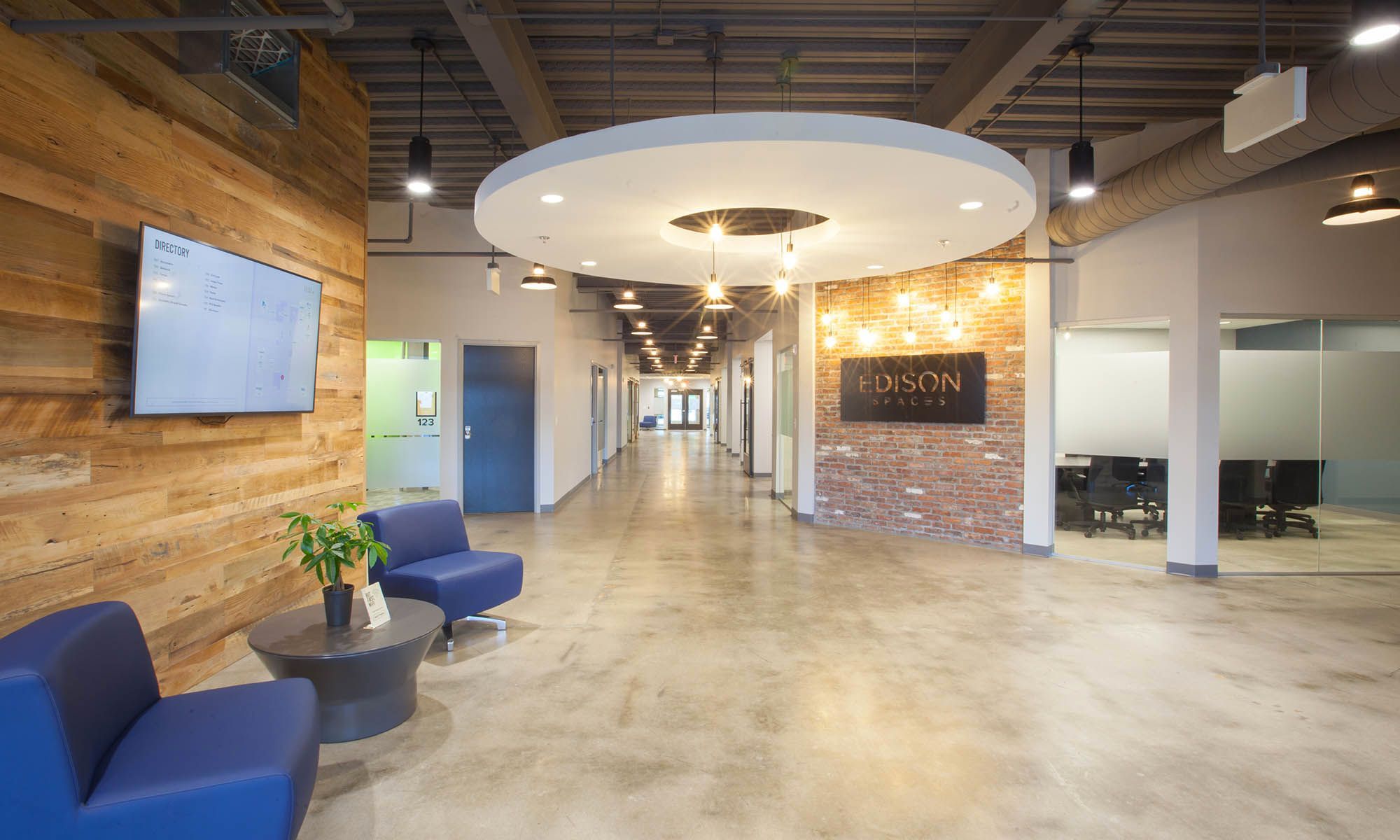
Task And Ambient Coordination: Dial in a comfortable baseline with dimmable ambient lighting and then add task lighting to highlight the immediate work zone. A pivoting desk lamp with a wide beam and soft diffuser can illuminate the keyboard, notebook, and peripherals without washing out the screen. Keep light sources out of your direct line of sight and angle them to minimize reflections on displays. Cooler light can sharpen visual clarity during intense focus sessions, while warmer tones wind down the day and improve comfort. Consider wall and ceiling reflectance; matte, lighter surfaces bounce light more evenly and reduce hot spots. If you use multiple monitors, pair a gentle bias light behind each to balance brightness and reduce eye fatigue during long sessions. Smart dimmers or simple in-line controls help you fine-tune intensity for reading, designing, or video calls. The outcome is a cohesive, adaptable light environment that supports productivity without distraction.
Video Call Lighting: Good on-camera lighting can elevate your presence as much as a clear microphone. Use a simple three-point setup: a soft key light as your primary source, a gentler fill light to reduce shadows, and a subtle backlight to separate you from the background. If space is tight, a single diffused panel slightly off-center at eye level can still deliver flattering results. Avoid strong backlighting from a window behind you, which will cause your face to be underexposed. Balance white balance by keeping light sources in the same family; mixing warm table lamps with cool LEDs often creates strange skin tones. Keep lights just outside the webcam's frame and tilt them downward to prevent lens flare. A small piece of white foam board can act as a bounce to even out shadows on the far side of your face. These small adjustments ensure a consistent, professional look for calls, recordings, and livestreams.
Clear Audio Capture: Crisp sound begins with the right microphone and proper placement. A dynamic microphone rejects more room noise, while a condenser microphone provides detailed clarity in quieter spaces. Choose a cardioid pattern to focus on your voice and reduce background distractions. USB mics are plug-and-play for simplicity; XLR mics paired with an audio interface give you more control and upgrade paths. Add a pop filter or foam windscreen to tame plosives and a boom arm to position the mic 6–10 inches from your mouth, slightly off-axis. Quality headsets can combine capture and monitoring in one device, reducing echo and keeping meetings private. Keep input gain low to avoid clipping, and use gentle noise suppression rather than aggressive filters that can thin your voice. Monitor your levels through headphones to catch hums, keyboard clatter, or HVAC noise early. A thoughtfully chosen chain ensures reliable, natural voice presence.
Taming Room Acoustics: The best mic cannot fix a lively room. Reduce reverberation and flutter echo with soft materials that absorb reflections: rugs on hard floors, curtains over bare windows, and bookshelves filled with varied items. Target the first reflection points—typically the side walls near your desk and the area behind your monitor or camera—using fabric panels or thick blankets. Avoid placing your desk in the exact center of a rectangular room, which can emphasize standing waves. Lower the noise floor by addressing hums from power strips, computer fans, or air vents. Isolation pads beneath desktop speakers keep vibrations off the desk, and rubber feet on stands dampen rumbles. Aim for a comfortable reverberation time where your voice sounds natural and controlled without feeling dead. Software-based noise reduction can help but should complement, not replace, physical treatment. A calmer acoustic profile boosts call clarity, transcription accuracy, and overall focus.
Rock-Solid Connectivity: Reliable connectivity is the backbone of remote work. For the lowest latency and highest throughput, prioritize Ethernet to your main computer and conferencing devices. Where wires are impractical, use a well-placed, dual- or tri-band mesh Wi‑Fi system to blanket the space, keeping nodes in open areas away from metal cabinets and thick walls. Position the router centrally and elevated, and separate it from cordless phones or microwaves to reduce interference. On Wi‑Fi, steer high-demand apps to the 5 GHz band for speed, leaving 2.4 GHz for low-bandwidth accessories. Enable QoS to prioritize video calls and collaboration tools, and leverage beamforming and MU‑MIMO features for better multi-device performance. A small gigabit switch can tidy wired connections for printers, docks, and network-attached storage. Periodically check for firmware updates, review device load, and scan your environment for channel congestion to maintain a consistent, responsive network.
Power, Reliability, And Maintenance: A resilient setup protects work against drops and interruptions. Use a surge protector with sufficient joule rating and a UPS to keep your router, modem, and core workstation online during short outages. Practice tidy cable management with labeled ties and raceways to improve airflow and reduce accidental disconnects. Consider ferrite cores on long cables to suppress interference near audio gear. Keep firmware updated across routers, interfaces, and docking stations, and schedule reboots to clear memory leaks. For failover, learn how to tether to a phone or a dedicated hotspot, and test it before you need it. Back up crucial files to both local and cloud destinations, and verify restore paths. Build a small toolkit—spare Ethernet cable, USB adapters, batteries for wireless devices—so you can resolve issues quickly. With thoughtful power, backup, and upkeep, your computers and consumer electronics stay dependable and ready for every task.