Ergonomic Desk Setup Tips for Healthier Computing
Set up your desk for comfort and health: tune chair height, monitor distance, keyboard and mouse position, and lighting to cut strain and boost focus.
Neutral Posture as Your Baseline
Start with neutral posture so your body aligns naturally with your tools. Keep ears over shoulders, shoulders relaxed, and elbows at roughly 90–110 degrees with forearms level to the desk. Maintain neutral wrists with fingers floating lightly above keys. Let hips sit slightly higher than knees, and support the lower back with lumbar support to preserve a gentle curve. Adjust seat depth so there's a comfortable gap behind the knees, and keep both feet flat on the floor or on a footrest. Position items in a primary reach zone within a forearm's arc; heavier or less-used items belong in the secondary zone. Square your torso to the screen to avoid neck rotation. This foundation helps your computers and consumer electronics serve you without creating strain. If your desk is fixed, fine-tune with cushions, risers, or a compact footrest. Remember, posture is a habit, not a rigid pose—revisit it throughout the day, pair it with light micro-movements, and make one adjustment at a time to confirm it genuinely improves comfort.
Optimize Monitor and Visual Ergonomics
Set monitor height so the top line of text is at or slightly below eye level, with the screen about an arm's length away to maintain a comfortable viewing distance. Tilt the display just enough to keep the center perpendicular to your gaze. If you use two displays equally, center them as a pair; if one is primary, place it directly in front and angle the secondary slightly. With a laptop, elevate it on a laptop stand and use an external keyboard and mouse for alignment. Reduce glare by keeping screens perpendicular to windows and adding diffused task lighting aimed at the desk, not the panel. Match brightness to ambient light and adjust contrast for legibility; tune color temperature for comfort. Enable scaling so interface elements are easy to read without squinting. Keep the webcam near eye level to avoid chin jut, and use a document holder close to the monitor to minimize head turns. Clean the panel regularly to maintain clarity and reduce visual strain.
Refine Keyboard, Mouse, and Input Control
Position the keyboard close with a slight negative tilt (front lower than back) to help maintain neutral wrists. Keep the home row near elbow height and type with light force, letting your palms rest only during pauses. Consider low-profile or split designs to reduce ulnar deviation, and keep the mouse on the same level and close to the keyboard to prevent reach. Choose a mouse that fits your hand so you can hold it softly, and tune pointer sensitivity so small motions cover the screen without overshoot. Rotate input devices—such as a vertical mouse, trackball, or pen tablet—to vary muscle load during repetitive tasks. Map shortcuts and macros to reduce clicks, and use scroll keys or a wheel to distribute effort. For pixel-precise work, temporarily lower pointer speed. Align devices with your shoulder line to prevent twisting, manage cables to eliminate drag, and consider a brief wrist warm-up before heavy typing to prepare tissues gently.
Choose Furniture and Accessories that Fit
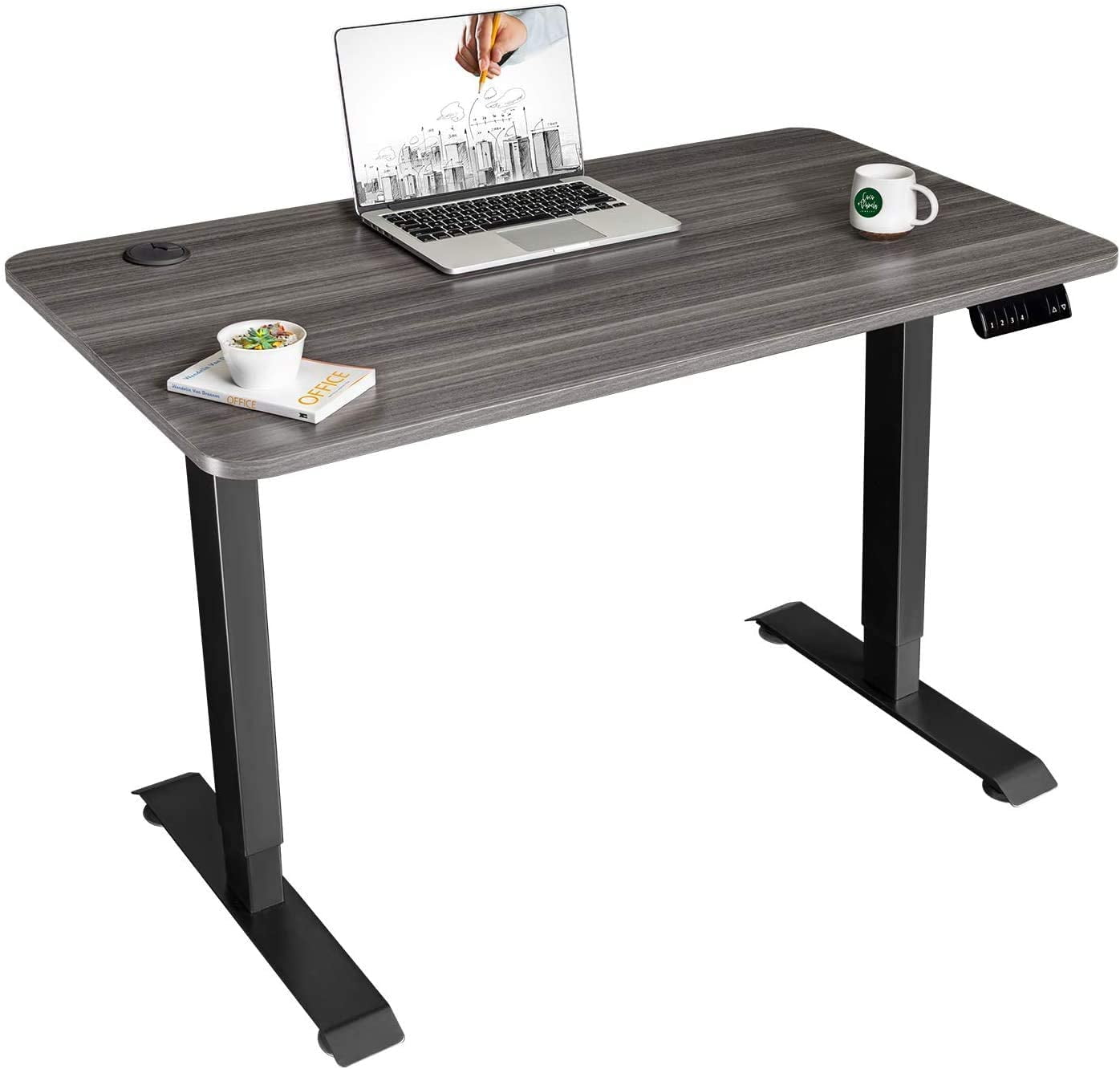
Prioritize adjustability in your chair: seat height, seat depth, backrest angle, and lumbar firmness should tune to your body. Armrests must support elbows lightly without lifting shoulders or forcing them wide. Choose a desk that maintains forearms parallel when seated; a sit-stand model lets you alternate positions throughout the day. Add a footrest if feet don't reach the floor; for standing, use an anti-fatigue mat and shift weight frequently. A monitor arm enables exact height and distance, while a document holder positioned near the screen reduces head rotation. Use a headset to avoid cradling phones, and implement cable management to keep reach zones clear. Pair laptops with a docking station, external keyboard, and mouse to recreate desktop ergonomics quickly. Keep speakers or headphones within easy reach for volume adjustments. Place chargers and hubs within the primary reach zone, and select durable, easy-to-clean materials that suit the daily demands of modern computers and consumer electronics workflows.
Build Healthy Habits and Sustainable Routines
Sustainable ergonomics blends setup with behavior. Insert microbreaks of 30–90 seconds every 20–30 minutes to reset posture and circulation. Use the 20-20-20 cue for eye comfort: every 20 minutes, look at something far away for about 20 seconds. Add movement snacks like shoulder rolls, neck mobility, wrist glides, hip shifts, and calf raises. Alternate sitting and standing across the day rather than doing long blocks of either. Create habit cues with calendar nudges or gentle timers, and stack posture checks onto routine events like calls or messages. Practice calm nasal breathing to reduce bracing and promote relaxed shoulders. Keep hydration nearby to encourage natural breaks. Periodically audit your setup—tighten monitor arms, check chair fasteners, clean peripherals, and refresh worn supports. Improve software workflows with shortcuts and templates to lower repetitive strain. End the day by resetting your station so tomorrow begins aligned, making comfort a predictable part of your computers and consumer electronics routine.